This guide walks you through entering your team's scores using the Team Score Entry progressive web app (PWA). The PWA is designed for mobile devices and can be installed on your phone's home screen for quick access.
- Enter scores for each team member
- Review and submit your scores
- Confirm your opponent's scores
- Track scoring status in real-time
Quick Navigation
1. Login with Team PIN 2. View Your Matchup 3. Enter Player Scores 4. Review Score Summary 5. Select Scoring Players 6. Submit Scores 7. Wait for Opponent 8. Confirm Opponent's Scores 9. View Final Results 10. CompletionLogin with Your Team PIN
Access the score entry system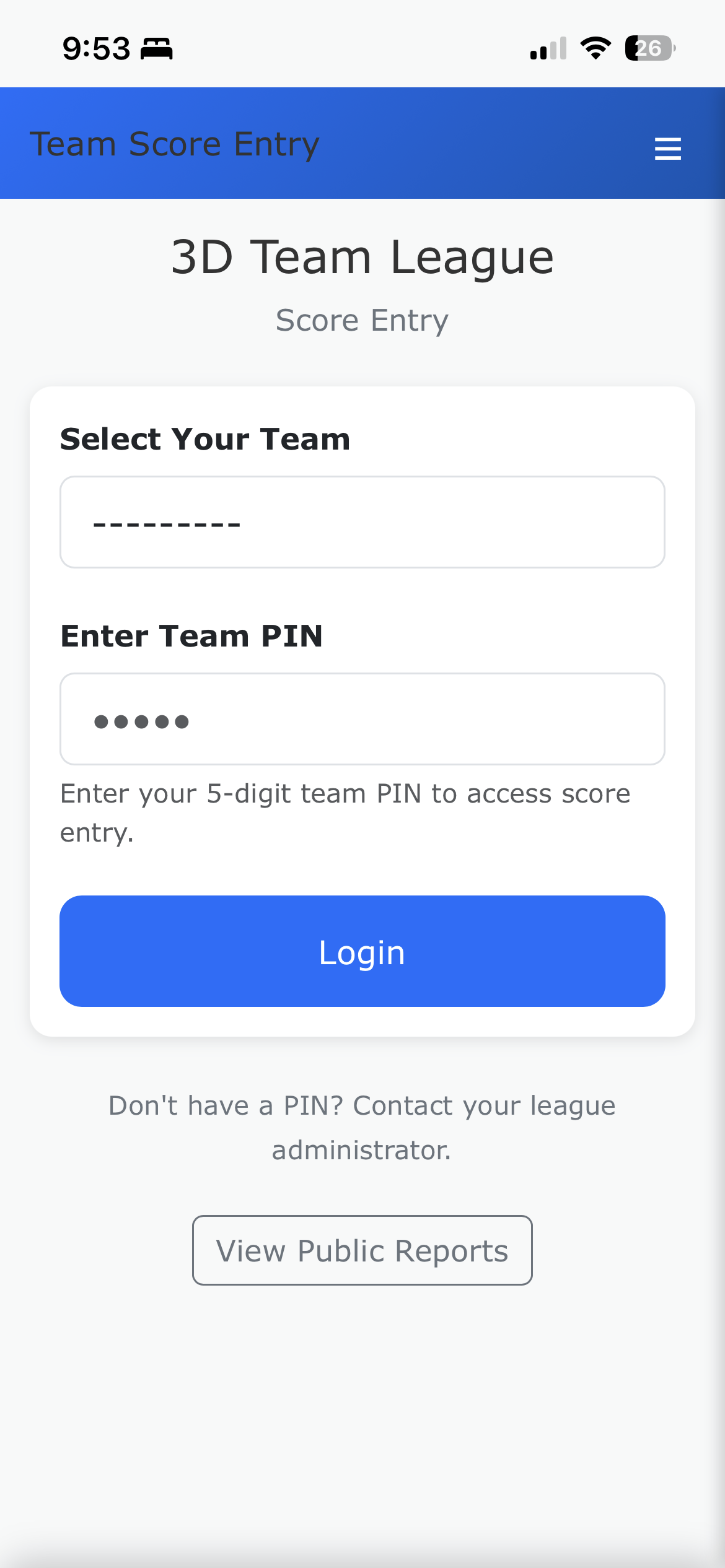
To begin entering scores:
- Navigate to the Team Entry page
- Select your team from the dropdown menu
- Enter your 5-digit team PIN
- Tap Login
View Your Current Matchup
See who you're playing against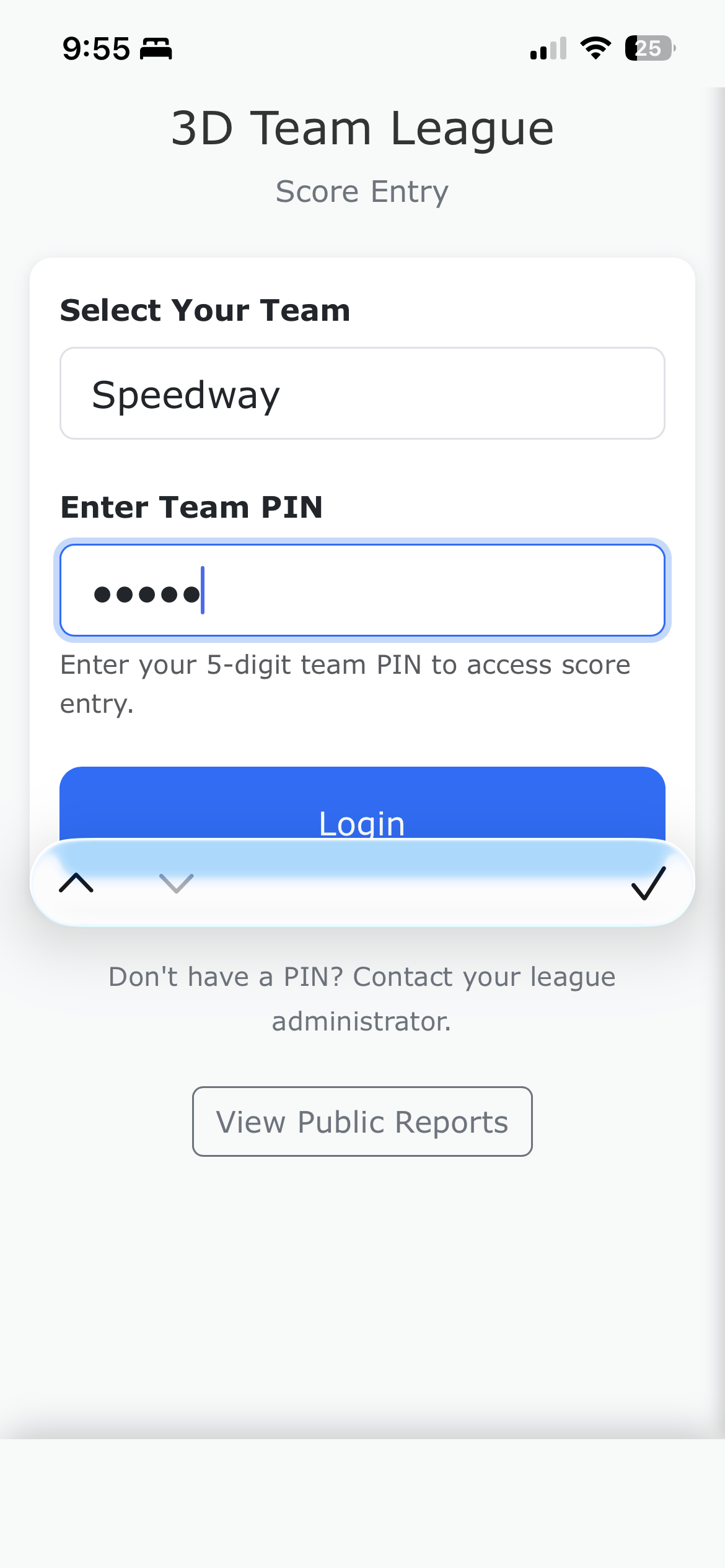
After logging in, you'll see your current week's matchup:
- Your team name and opponent are displayed prominently
- The week number is shown at the top
- Status badges show if you or your opponent have entered/submitted scores
Tap Enter Scores → to begin entering your team's scores.
- Not Started - No scores entered yet
- In Progress - Scores being entered
- Submitted - Scores submitted, awaiting confirmation
- Confirmed - Scores verified by opponent
Enter Player Scores
Input scores for each team member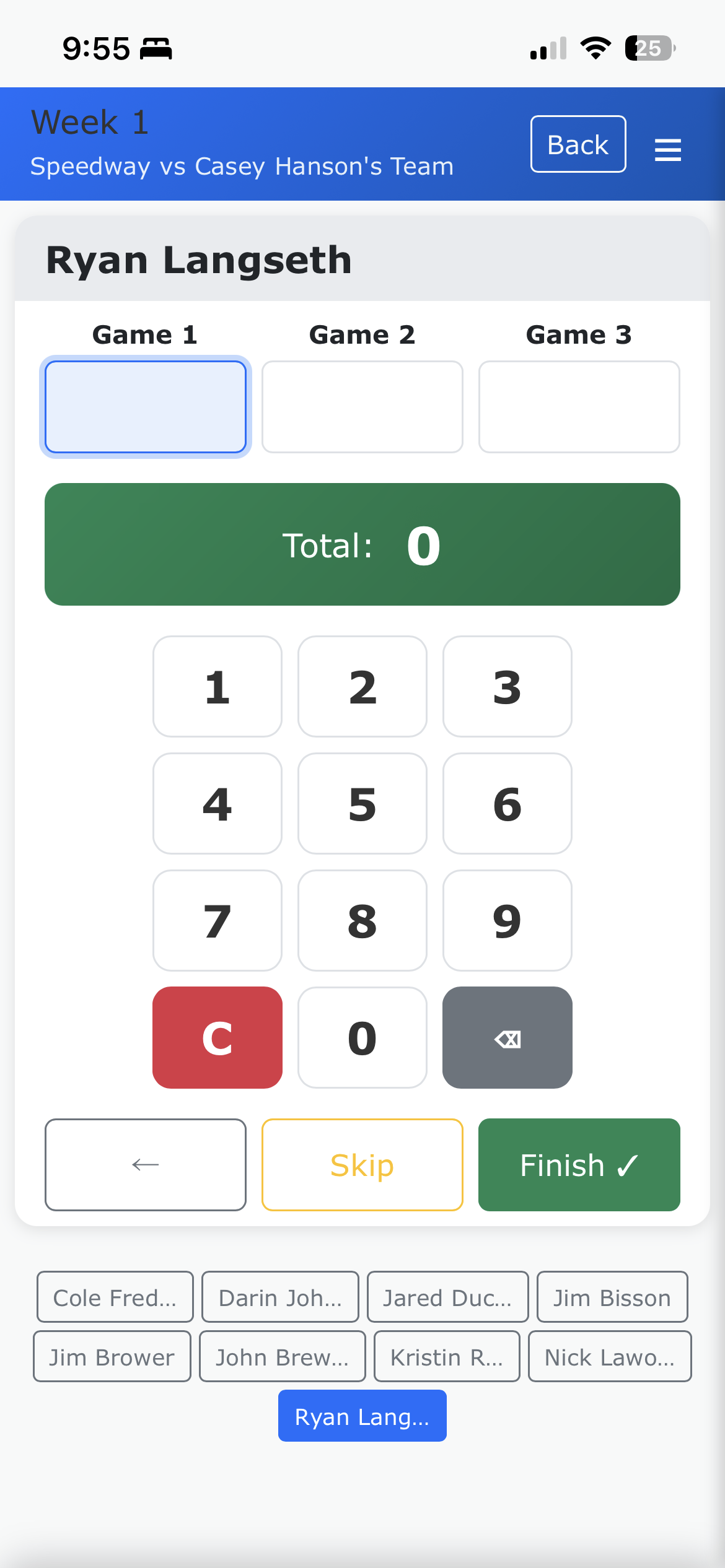
For each team member, enter their three game scores:
- The current player's name is shown at the top
- Enter the score for Game 1, Game 2, and Game 3
- Use the on-screen number pad or your device's keyboard
- The running total updates automatically as you type
- Tap Next → to move to the next player
Review Score Summary
Check all scores before submitting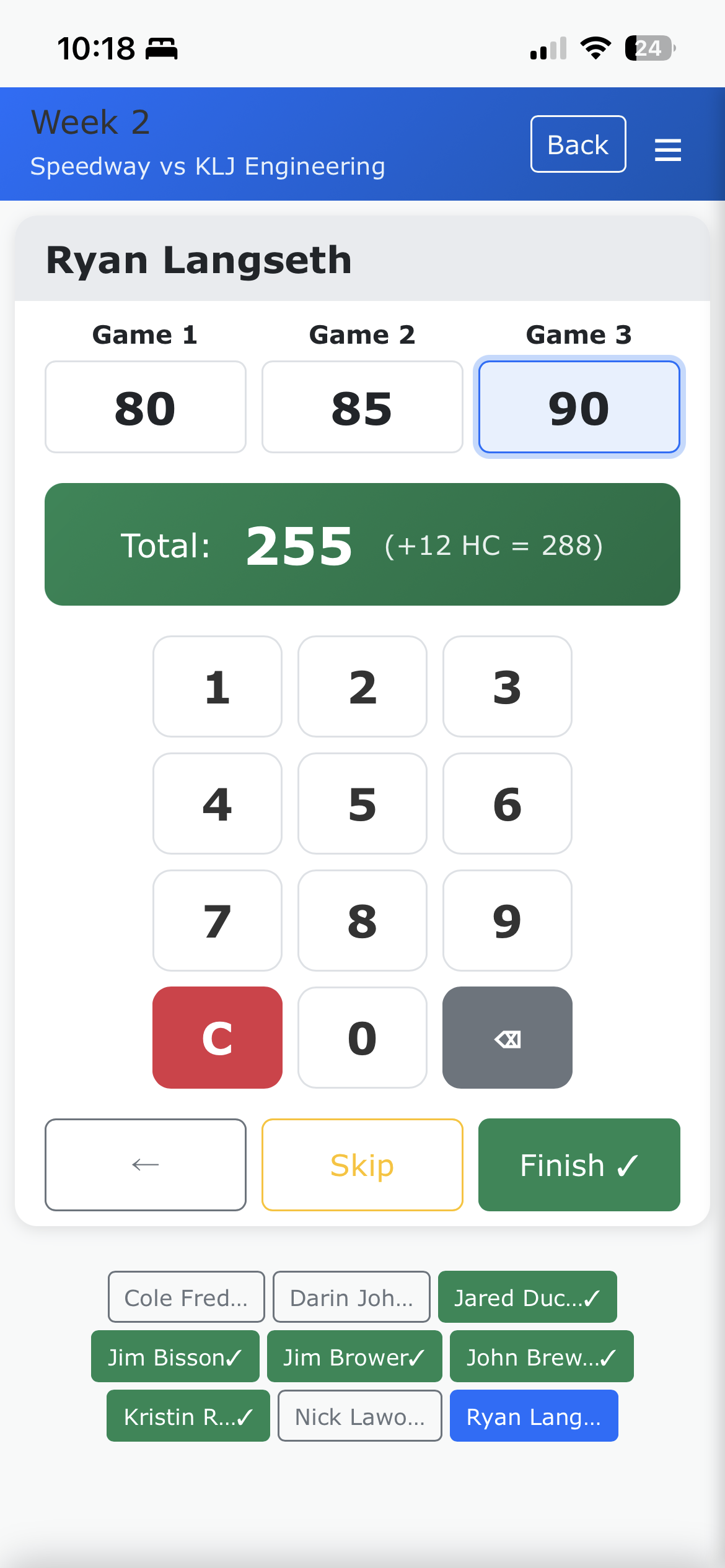
After entering all scores, you'll see a summary showing:
- Each player's individual game scores
- Handicap adjustments applied to each score
- Total score with handicap for each player
- Team total at the bottom
Review carefully to ensure all scores are correct before proceeding.
Select Scoring Players
Choose which players count toward team score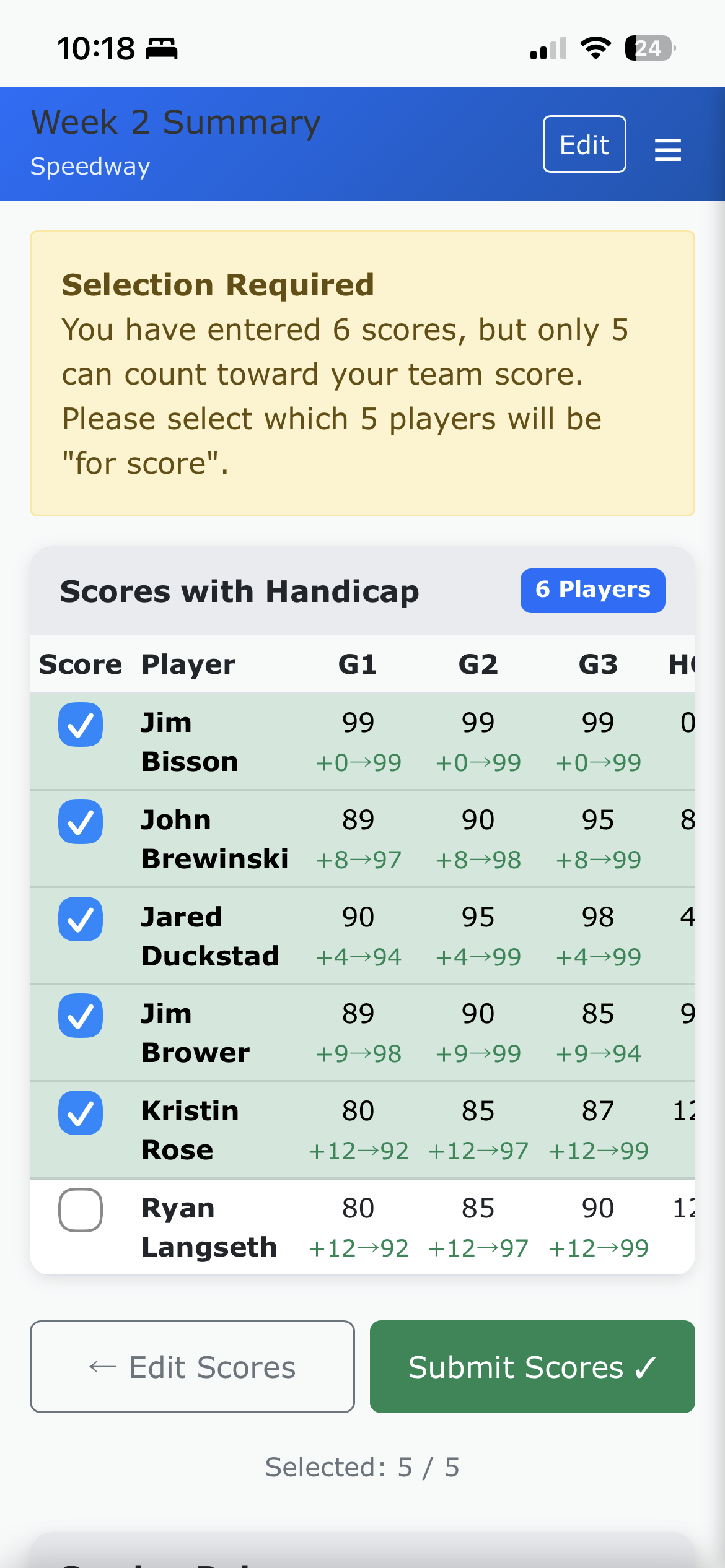
If your team has more players than the league allows for scoring:
- You'll see checkboxes next to each player
- Select the players whose scores should count toward your team total
- The number of players you can select is shown at the top
- Selected players are highlighted in green
Submit Your Scores
Send scores for opponent confirmation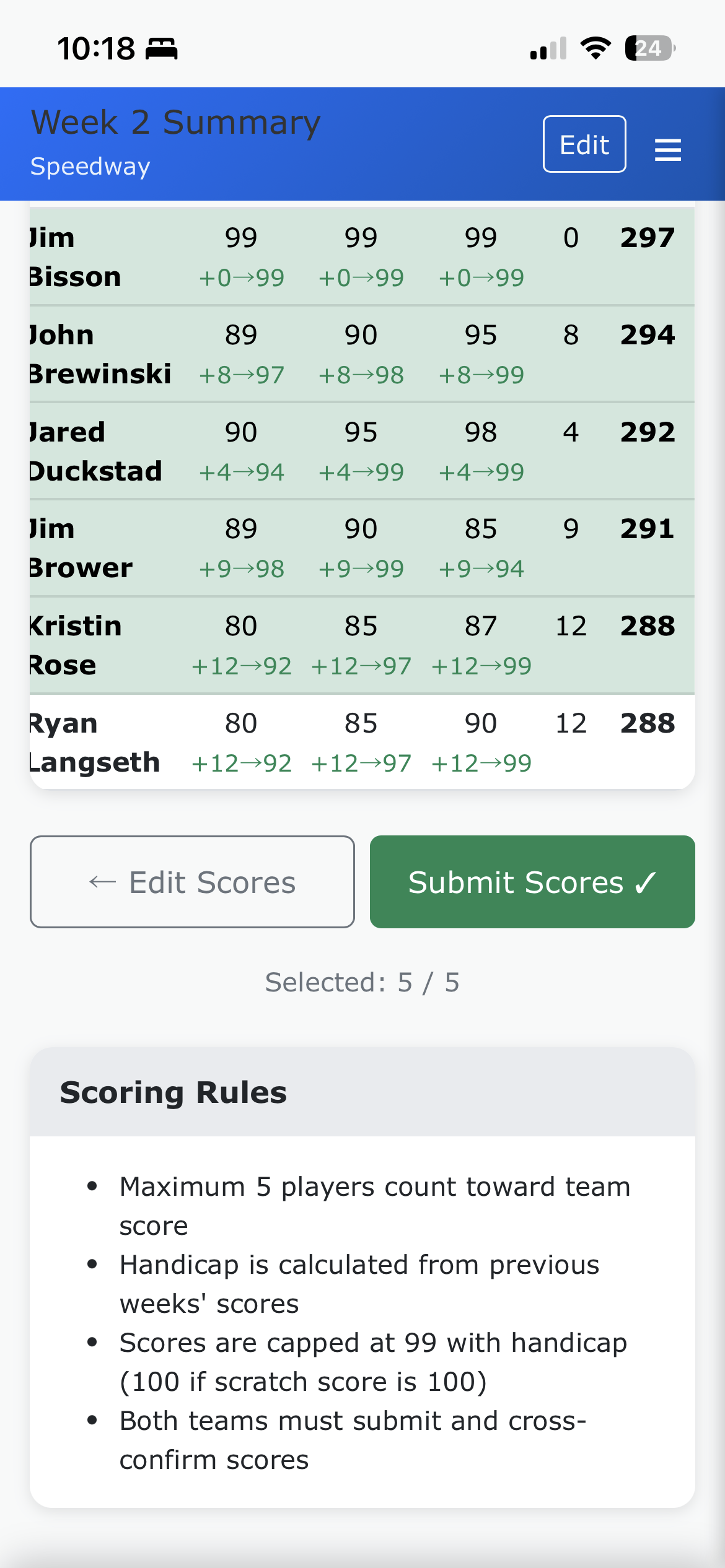
Once you're satisfied with your selections:
- Review the final summary one more time
- Tap Submit Scores
- Confirm the submission when prompted
Wait for Opponent
Monitor submission status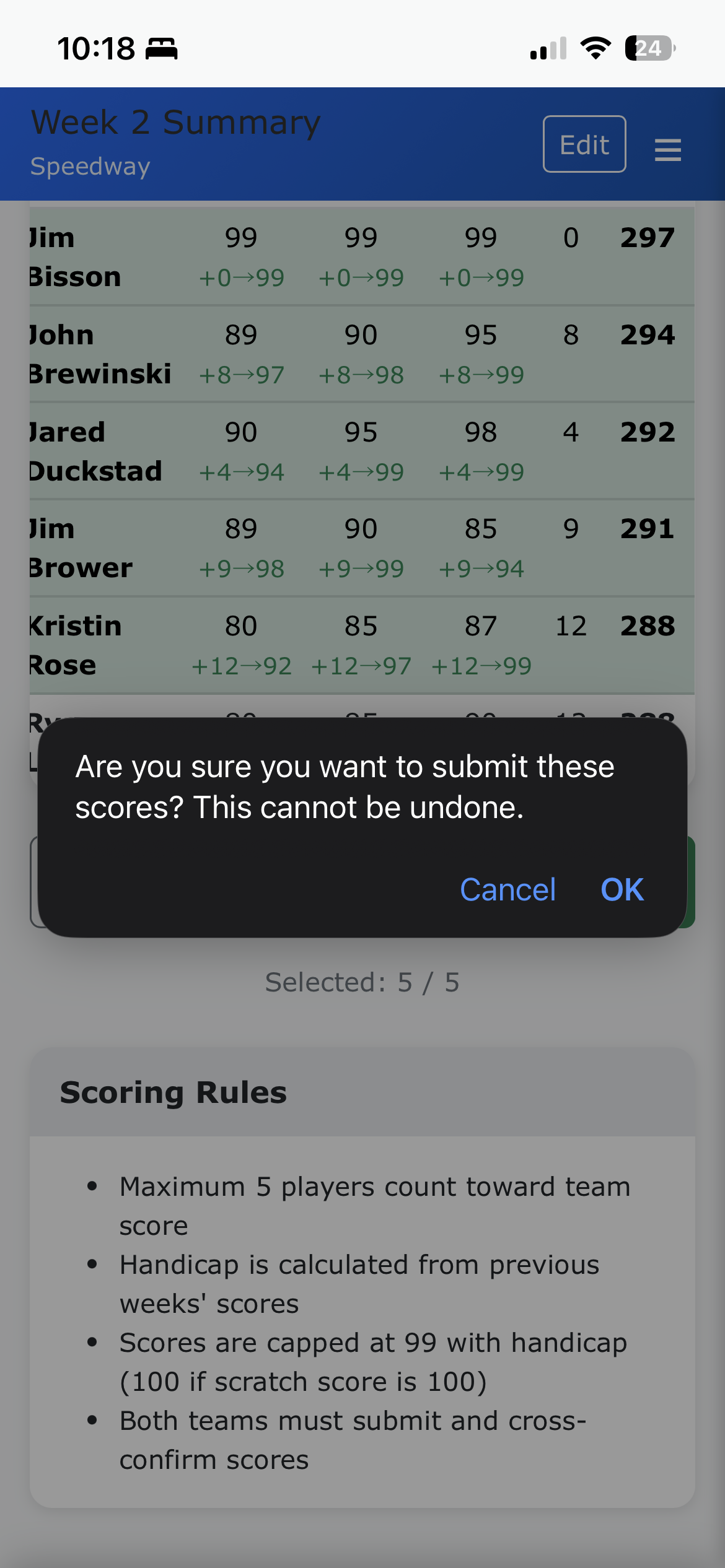
After submitting, you'll see a status screen showing:
- Your status: "Submitted" - your scores are in the system
- Opponent status: Shows if they've submitted yet
The page refreshes automatically to check for updates. Once your opponent submits their scores, you'll be able to review and confirm them.
Confirm Opponent's Scores
Verify the other team's submissions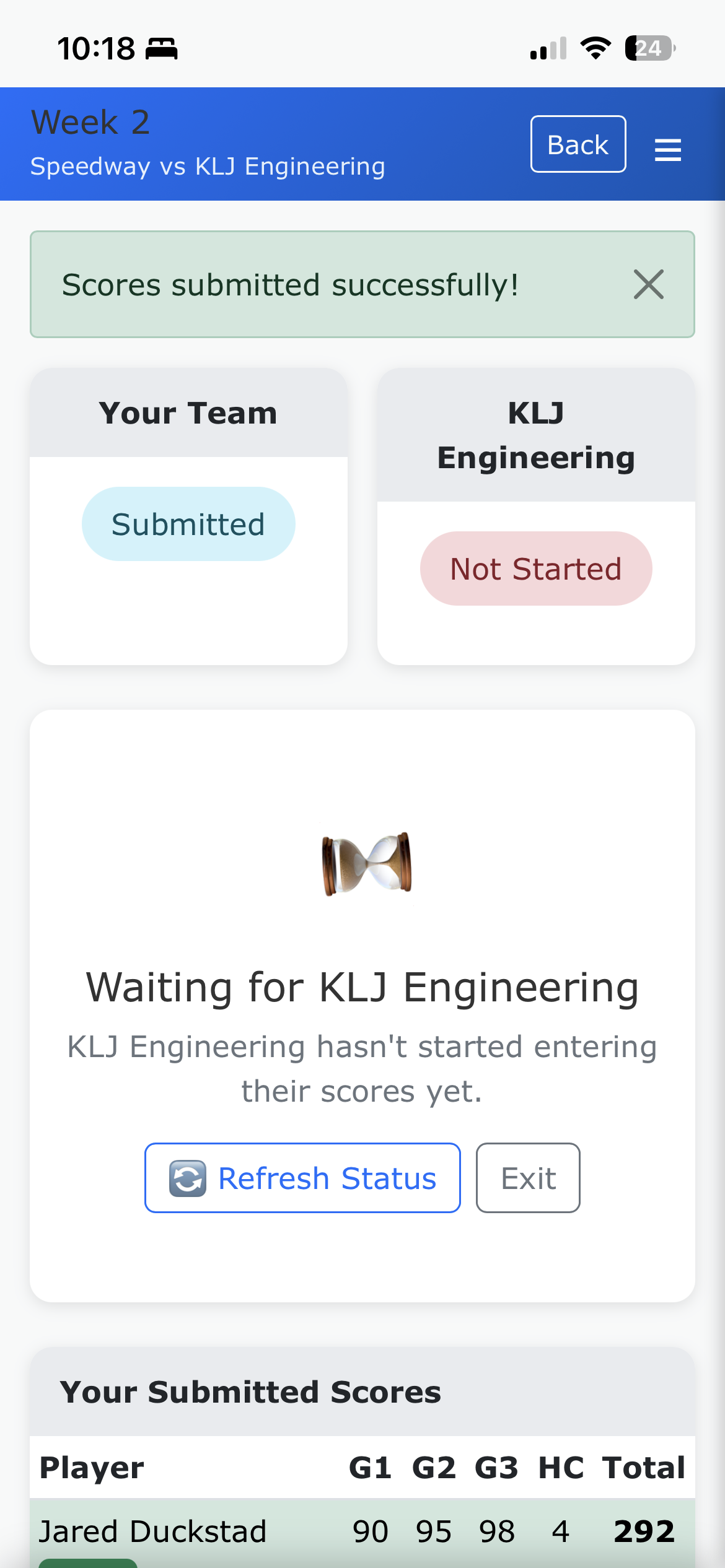
When your opponent has submitted, you'll review their scores:
- Carefully compare their submitted scores to what was recorded during the match
- If everything looks correct, tap Confirm Scores Are Correct
- If you notice errors, tap Dispute to flag for administrator review
View Final Results
See the confirmed matchup results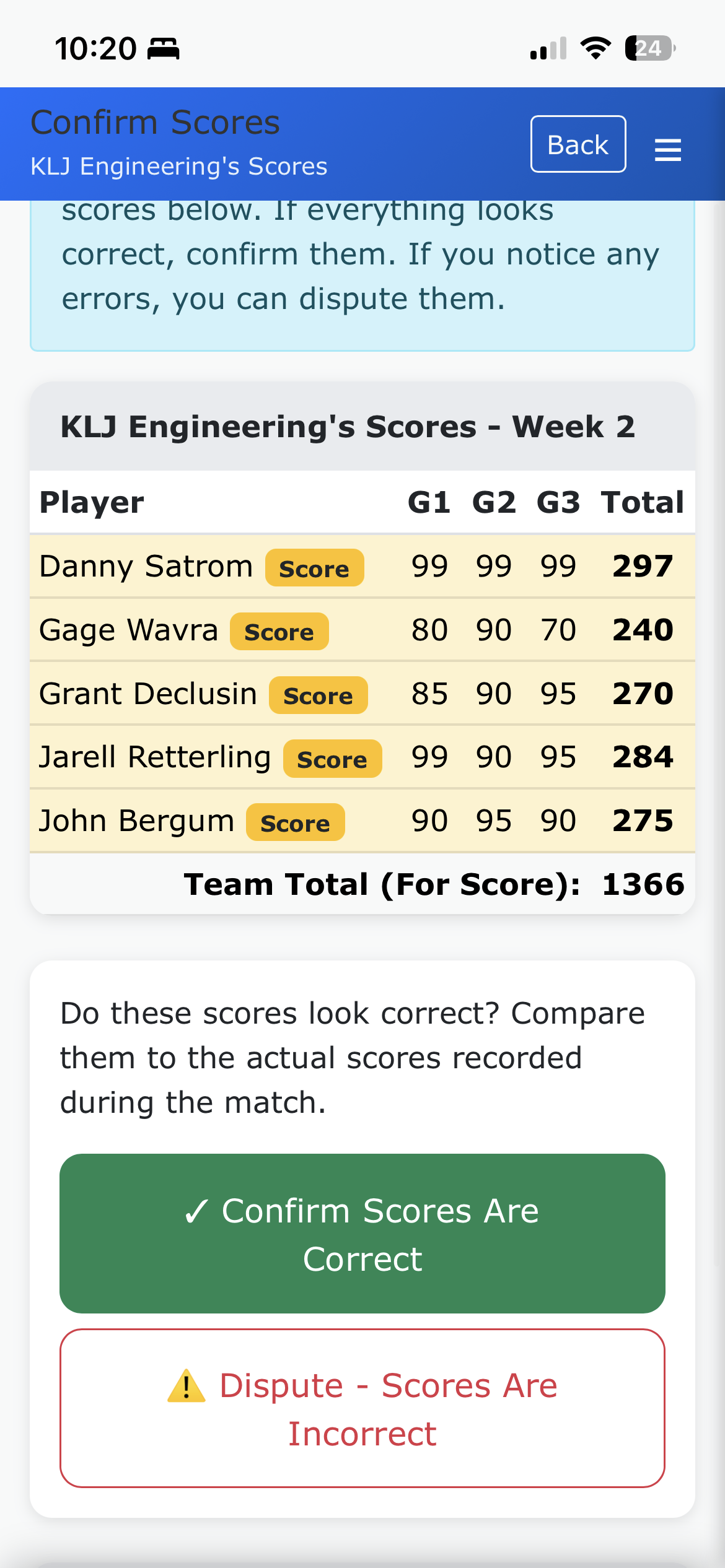
Once both teams have confirmed each other's scores:
- Both status indicators will show Confirmed
- The matchup is now complete pending admin approval
- You can view the final scores and points awarded
Matchup Complete!
All done for this week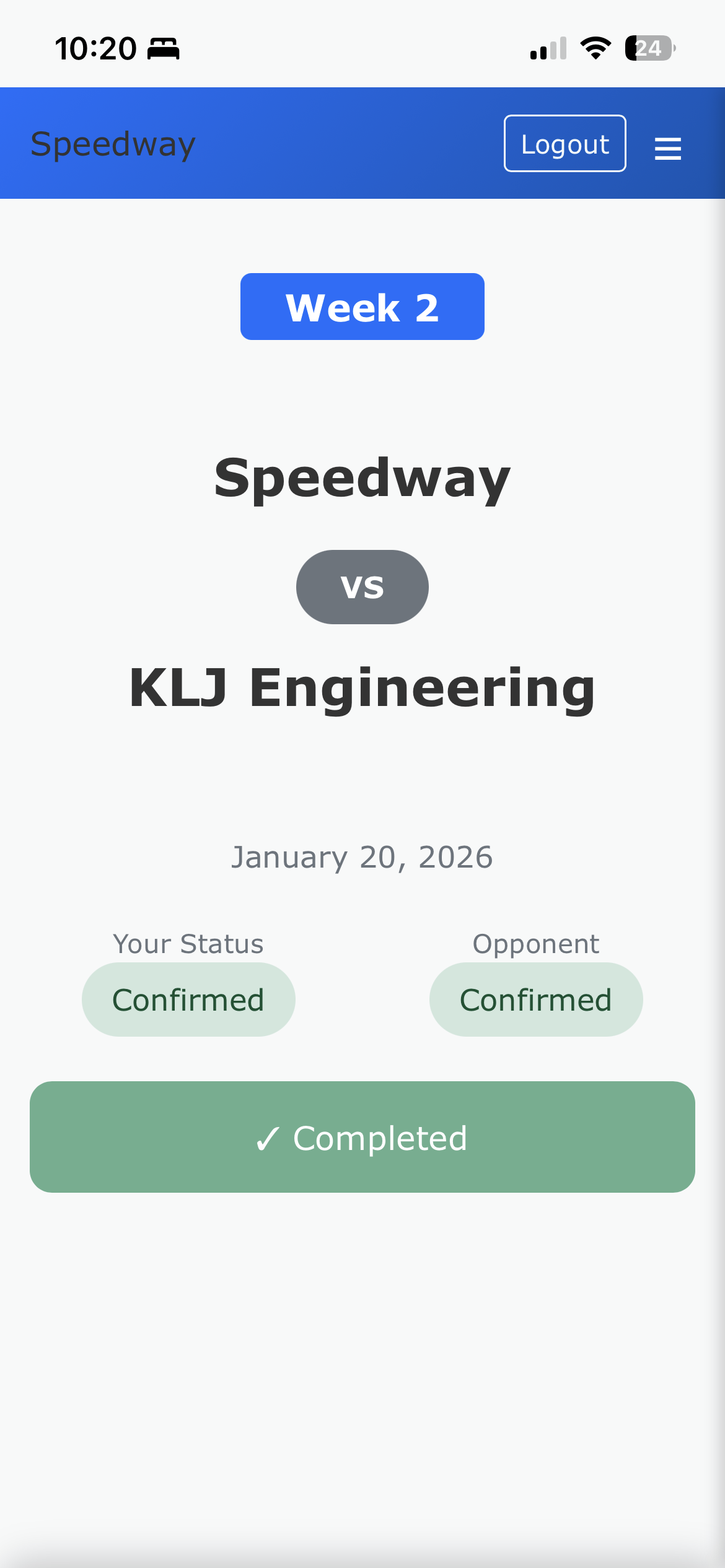
Your matchup is now complete:
- Both teams' scores have been recorded and confirmed
- Points have been calculated based on game wins and total scores
- Results will appear in the league standings and weekly reports
- Check the Weekly Scores report to see all results
- View Team Standings to see updated rankings
- Come back next week to enter your next matchup scores!
For the best experience, install the Team Score Entry as an app on your device:
On iPhone/iPad:
- Open Safari and navigate to the Team Entry page
- Tap the Share button (square with arrow)
- Scroll down and tap Add to Home Screen
- Tap Add to confirm
On Android:
- Open Chrome and navigate to the Team Entry page
- Tap the three dots menu in the top right
- Tap Add to Home screen
- Tap Add to confirm
Once installed, the app will open in full-screen mode without browser controls, providing a native app-like experience.
If you encounter any issues:
- Forgot your PIN? Contact your league administrator
- Score entry problems? Make sure you're entering valid numbers
- Can't see your matchup? Verify you're in the correct week
- Technical issues? Try refreshing the page or clearing your browser cache